
Settings
Monitor
The TruNeg website has been optimised for a monitor gamma of 1.8. This has not been done out of personal preference, but because gamma 1.8 is the closest gamma that reproduces the stop exposure changes in photographic images. As monitor gamma increases, the dark tones are darkened and the lighter tones stretched, increasing the apparent contrast. The standardised gamma of 2.2 has been established as the best compromise for viewing different document types in the office environment. It is not particularly suitable for viewing images intended for printing on photographic media.
When viewing the TruNeg stepwedge, the monitor should be adjusted as close as possible so that T1 is the first detectable tone from black, and the tones increase in brightness in an ascending scale.
Editing should be done in subdued light on a mid-grey background, as the background tone strongly influences the ability to separate dark tones. On black, they look too light; on white, they look too dark, particularly with the very high brightness of currently available monitors.
It is suggested that the monitor brightness and contrast be kept relatively low with a warm colour to better match the typically low contrast of most alternative process prints.
Image Files
All files for conversion must be in a 16-bit Grayscale Gamma_2.2 .tiff format. The program only accepts this format. The user should check carefully when converting from colour or another format.
When editing the Grayscale image make sure that the Curve Options are set to show RGB values and not % k.
Printer
There is much discussion and many questions raised about printers and printer settings for different processes. It is the author’s view that this is brought about by the methods traditionally used being unable to separate the cause of a failed negative and the printer being turned to to solve the problem.
Most modern inkjet printers with two or three black or grey inks can print a convincing monochrome print and therefore can print a good negative if the correct information is provided. However, there is a significant difference in UV opacity between dye- and pigment-based printers, with dye-based inks generally providing insufficient opacity for most alternative processes. This can be significantly improved by using a contrast mask as detailed below.
The printer’s job is to print a negative with a smooth gradation of neutral tones from the maximum available density to RGB 255. It is beyond the scope of this website and the author’s expertise to provide specific instructions on setting up different printers; however, the following approach has been found to work on the author’s Canon iP8760 printer.
Use the editing program to manage the colour
Use a printer-supplied profile
Print in grayscale
Use a 16-bit printer driver
Use Rendering Intent: Absolute Colorimetric
Do not:
Calibrate the printer for printing on paper, as this is likely to reduce the maximum ink density.
Increase or decrease the printer density to make the negative darker or lighter by more than 5 or 6% unless you know that the printer changes the maximum density at the same time. Increasing the density or adding yellow between a fixed Dmax and clear film makes the negative darker without changing the contrast, which can produce washed-out prints.
Spend some time comparing different printer settings by printing adjacent test strips of the Calibration negative on film to find the highest maximum density and smoothest tones. This can be done by visually inspecting the prints, but if necessary, run some test prints at an exposure that produces some tone in the RGB 0 strip adjacent to the stepwedge.
Once the maximum density has been determined and the best gradation of tones down to RGB 6 has been achieved, do not change the settings to adjust print results.
Contrast Masks
The density of a negative can be doubled by registering two negatives. All the prints shown on the website were made this way from two negatives printed on a Canon iP8760 printer.
At half the cost and base density, Fixxons Waterproof film is equivalent to Pictorico in cost and exposure time.
The registration method used is crude but has been found to be effective. Download the Registration Marker file, copy and paste it into the opposite corners in or just outside the image and print two copies.
On a lightbox or a sheet of glass suspended over a piece of white paper, tape two adjacent corners on the long side of the face-up negative to the glass, making sure that the film is flat. Fix half of two small pieces of tape face up to the back of the negative and bend them up so they can be folded over when the negatives are registered.
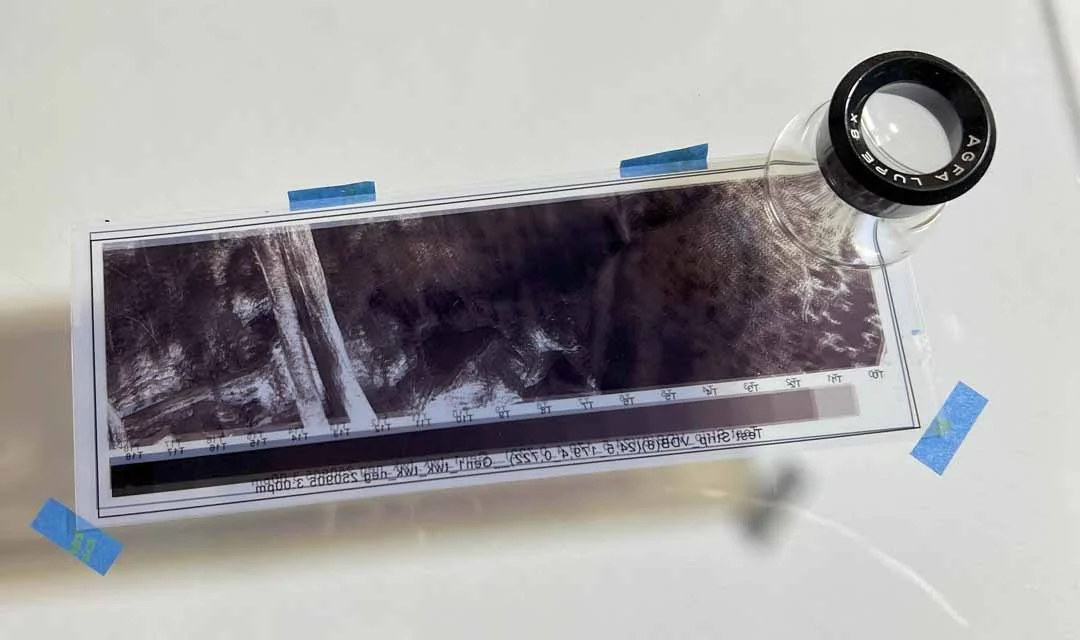
Align the negatives visually and use a loupe to align one corner. Tape down the corner when it is registered. Align the other corner, double-check the first, and if both are registered, fold over the two pieces of tape to hold the negatives together.