
Option B
Overview
Establish the exposure with the Calibration Stepwedge.
Find the white and Dmax points and, using a densitometer or Stouffer R3705-1 Opaque Gray Scale, measure the two densities and enter them and the RGB values into the Profiler.
The app generates a form showing 10 intermediate densities of the true negative.
Using the densitometer or Stouffer GrayScale, find the densities and aligned RGB values on a print of the TruNeg logarithmic gradient.
Enter the RGB values into the program and save the preset.
Convert and print the negative, and print the print.
Before commencing, ensure that the monitor and printer are set up as detailed in the Settings page
Next, download and print the TruNeg Gradient from the Downloads page using the exposure just found.
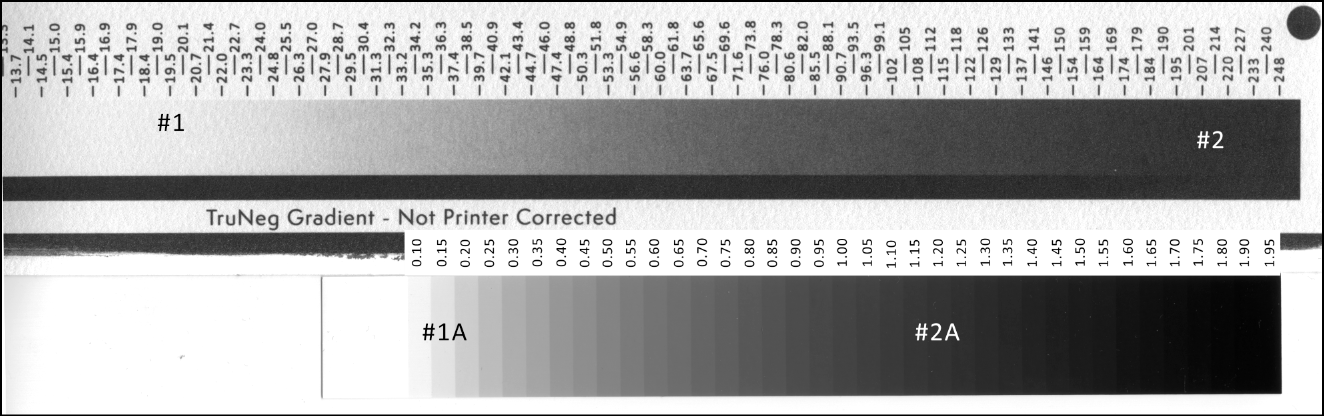
The Gradient is a 128-step 16-bit logarithmic stepwedge ranging from RGB 8 to 248. It is labelled in “8-bit” notation to three significant figures. The gradient is 14.6 (37.1 cm) inches long to fit the long side of a quarter sheet of watercolour paper. It is 2.14 (5.43 cm) inches wide. Adjust the size if necessary, but keep it as large as possible.
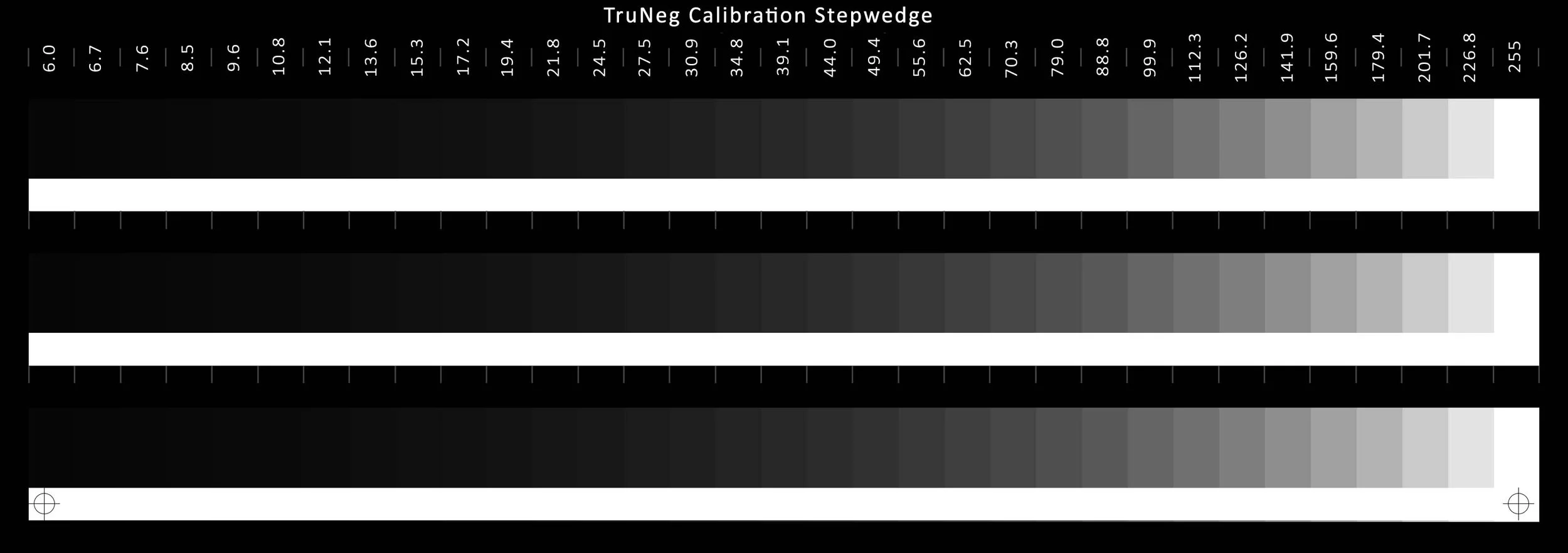
If you do not know the exposure, download the 3 ×9 inch Calibration Stepwedge from the Downloads page. The stepwedge has three identical stepwedges, making it easy to do, say, a 3-, 6-, or 12-minute test to find a good exposure. If needed, find an intermediate exposure that meets the criteria, noting that there is no perfect exposure, as long as you have a good Dmax and a clean white.
The minimum exposure is when the last two steps cannot be separated from the adjacent clear film strip. The maximum exposure occurs when there are no white steps.
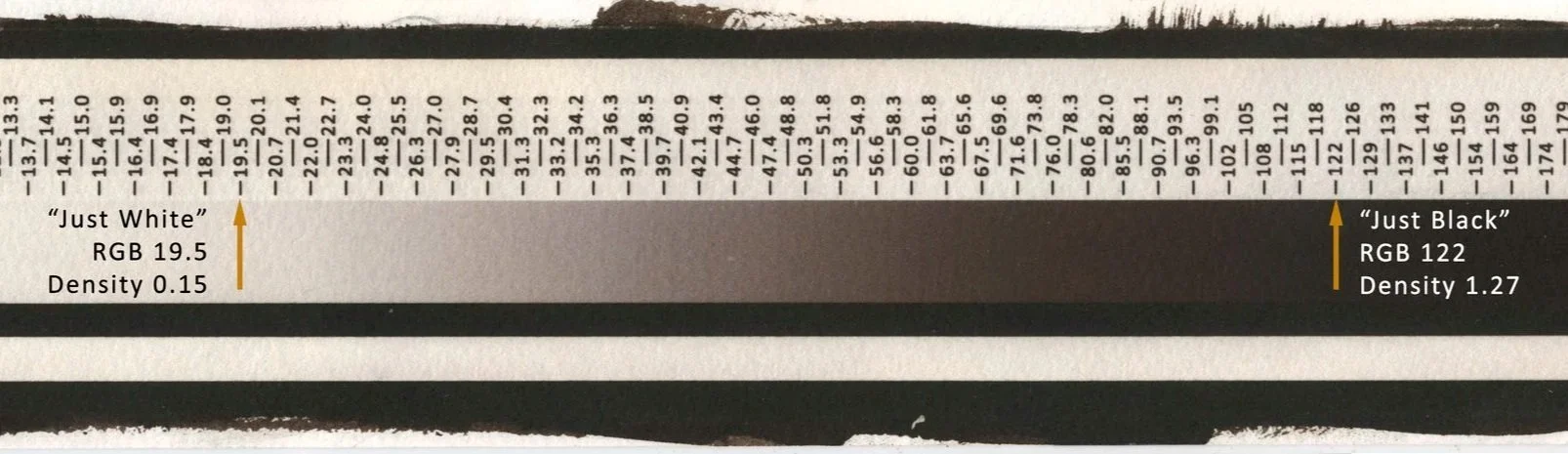
Keeping the whites of alternative processes prints free from chemical fog can be difficult, making the exact “Just White” point unclear, so you need to select the last value before the gradient stops getting lighter. If in doubt, choose the slightly darker step, but be aware that this will be the lightest tone in the print.
The “Just Black” is the last tone that can be separated from the adjacent Dmax strip. Run your finger down the Dmax strip and stop at the first obvious “black” or Dmax point where the gradient merges into the strip. If in doubt, choose the slightly darker step. This establishes the darkest shadow tone without affecting the maximum density and should be just discernible from Dmax.
Instructions for Densitometer
Instructions for Stouffer Stepwedge
The Stouffer #R3705-1 Opaque Gray Scale provides a cheap alternative to a densitometer. Once you are familiar with how to use it, it is simple, quick and provides the same results as a densitometer. For the purposes of making alternative process prints, the uncalibrated stepwedge is adequate.
https://www.alternativephotography.com/stouffer-step-wedge-buy/
The principle for using the Stouffer is that tones with the same RGB value will have the same density if scanned together. If you measure the RGB value of an unknown tone, the Stouffer step with the closest RGB value is the density.
Scan the gradient and Stouffer Stepwedge together at 360 dpi. The scan only needs to look reasonably true with good separation in the TruNeg gradient’s shadows and highlights.
In the editing program, convert the scan to B&W, and adjust the Stouffer Stepwedge Dmax to RGB 16 and the white to 250, keeping the gamma at 1.
The Gradient’s Dmax will normally appear lighter than the Stouffer stepwedge’s, and the white will be darker.
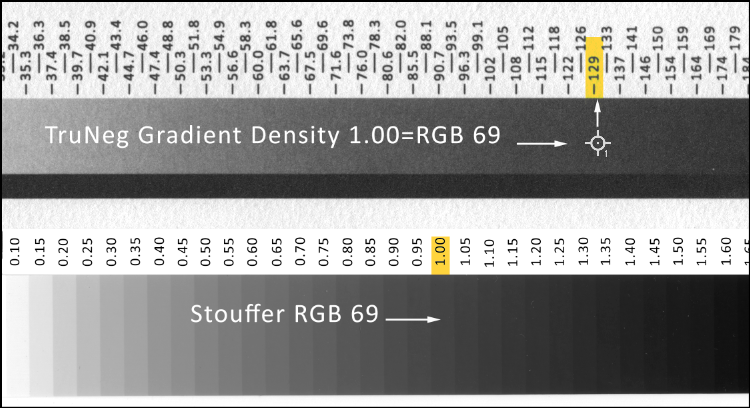
Download and open the 360 dpi Stouffer Density Notation file from the website, copy and paste it beside the stepwedge aligning the numbers with each tone. Note that the first value is the first step wedge tone. If the scan was done at 360 dpi, they should match.
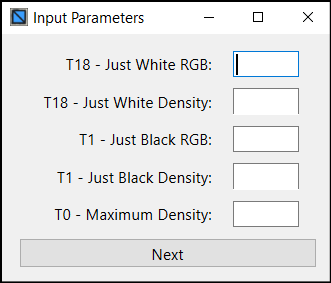
Open the Profiler and enter the “Just White” RGB value chosen above. Using the colour picker with a sample size just large enough to even out the effects of the paper texture, measure the RGB value of the “Just White” RGB value on the Gradient. See #1 below. Note that it will not match the Gradient’s RGB value.
Now find the best-match RGB in the Stouffer stepwedge, shown as #1A, and enter the density into the Profiler.
Do the same for the Dmax “Just Black” values. #2 and #2A below.
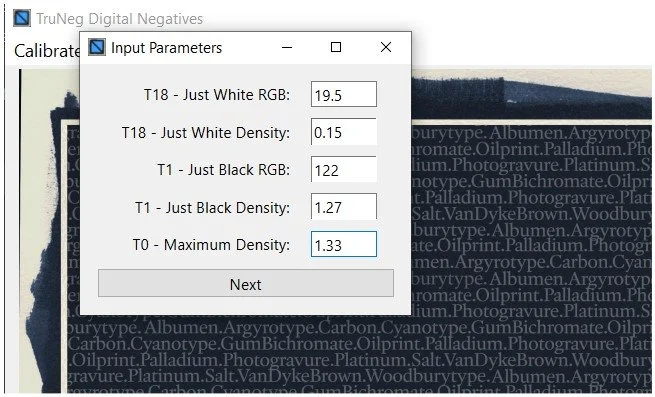
Having decided on the white and Dmax points, measure the two densities with the densitometer and enter them with their corresponding RGB values into the Profiler.
The program calculates ten intermediate target densities and displays them in bold text in the Profiler window. The densitometer is then used to find the densities, and the matching RGB values are entered in the adjacent fields.
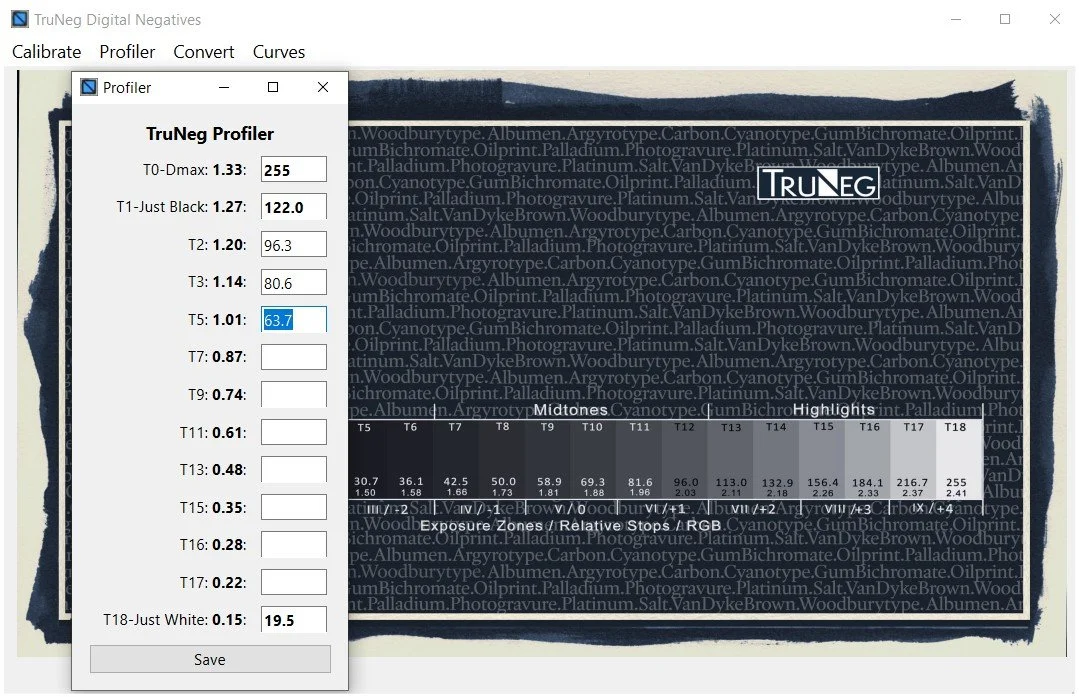
The program calculates ten intermediate densities of the true negative and displays them in bold text in the Profiler window shown opposite.
Using the colour picker, find the stepwedge value closest to the densities shown in the Profiler, measure the RGB value and find the same value in the gradient. Enter the RGB value shown above the gradient into the Profiler.
For example, if the T5 target density is 1.01, the closest Stouffer density is 1.00, with an RGB value of 69. Locate RGB 69 on the TruNeg Gradient and 129 is the negative value that produced a density of 1.00 and 129 is the value entered into the Profiler.
Do the same for each, and when completed, save the file as shown opposite.
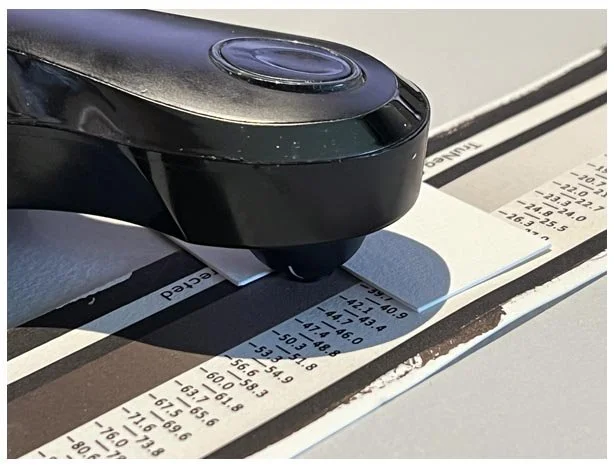
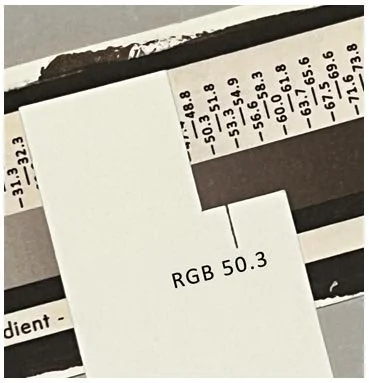
A small piece of card with a notch cut out helps to line up the densitometer.
When completed, save the file identifying the process and exposure time. The program adds the just white and black values, the overall gamma and appends “Profiled” to clearly identify the Preset. The Preset is saved as a Python Pickle file. At the same time, the recorded densities are saved in a separate file.
E.G. Kalli(3).pkl(19,4_121,9_0,665)Profiled
Kall(3)_density.pkl
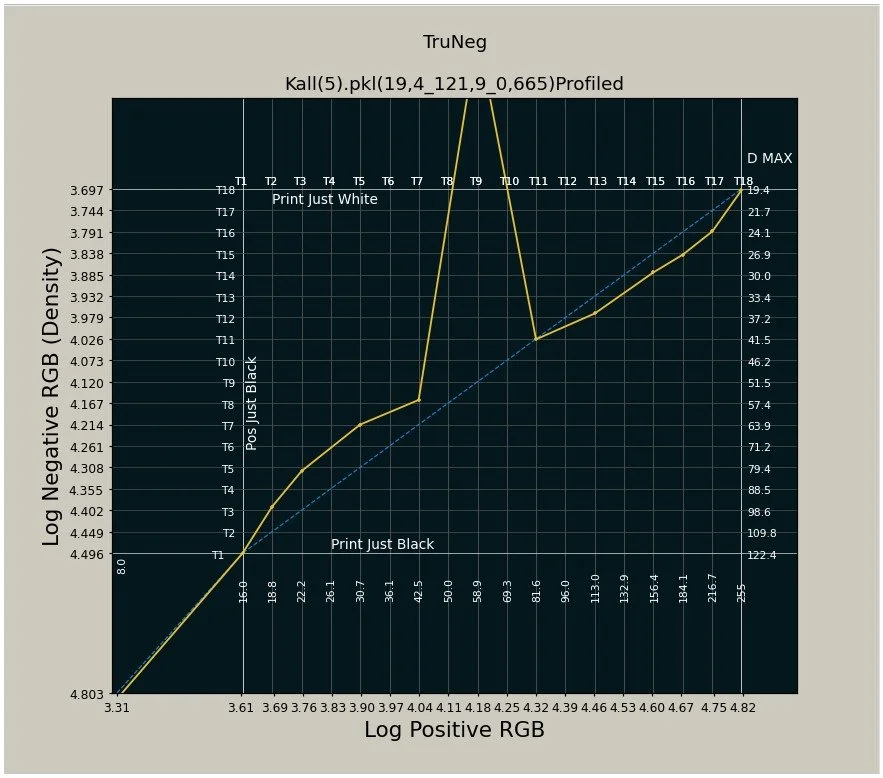
The Preset curve should be viewed before conversion to check for input errors and smooth out any slight wobbles.
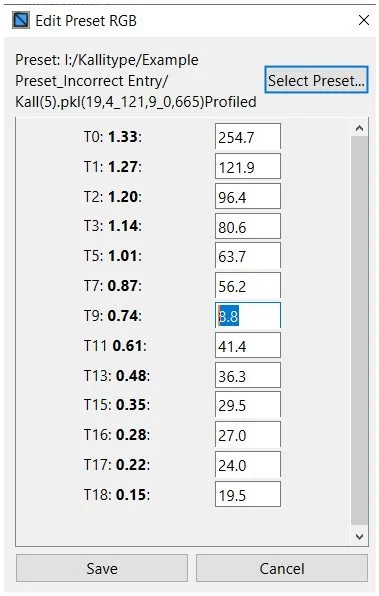
If there is an obvious error, such as a large spike in the curve, open the Edit_RGB menu, select the Preset (not the Density file), find the error and overwrite the entry and save the corrected Preset.
Note that if the curve has been tweaked, the tweak will need to be redone
Convert
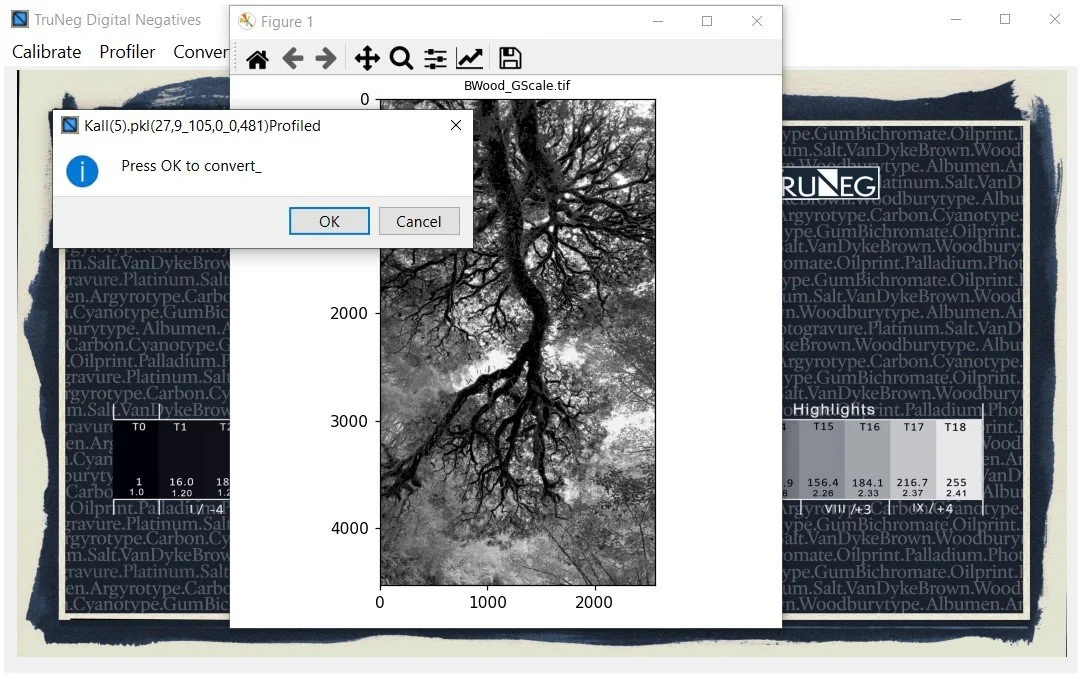
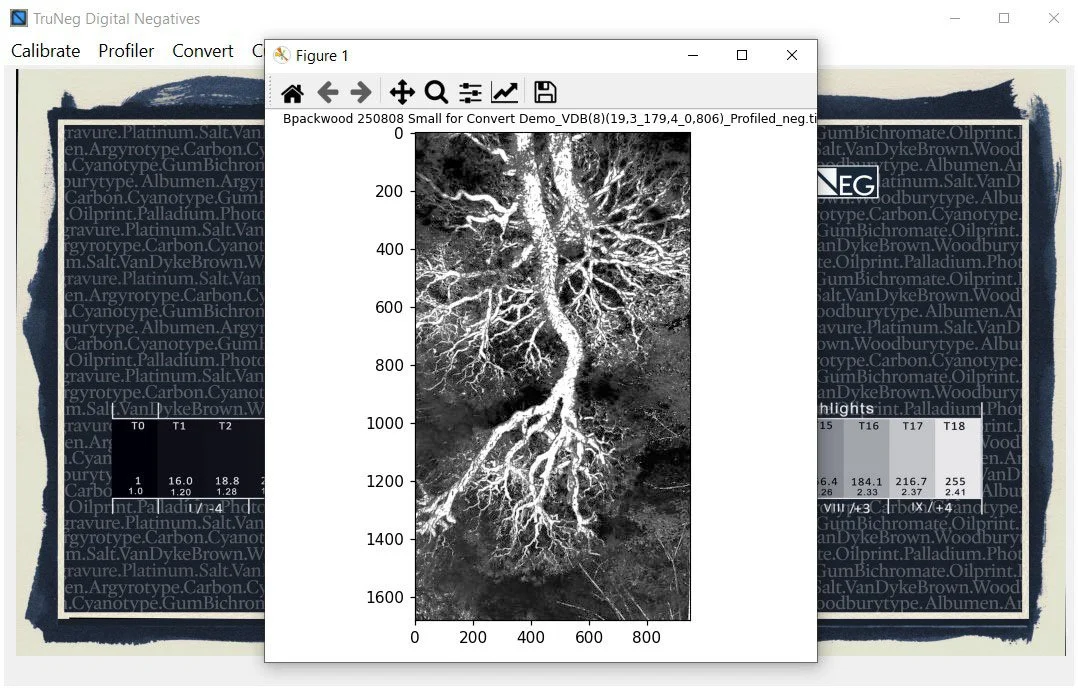
Open the Convert menu, select the image and preset, then press OK.
Once the negative is completed, which can take 30 seconds or more, it is automatically exported to the Preset folder, ready for printing.
Print the Print
If you have confidence in the consistency of your process and the image has been edited on a monitor with a gamma of 1.8, you can go straight to print. Otherwise, make a test strip and, if thought necessary, edit the image in the Curves page.
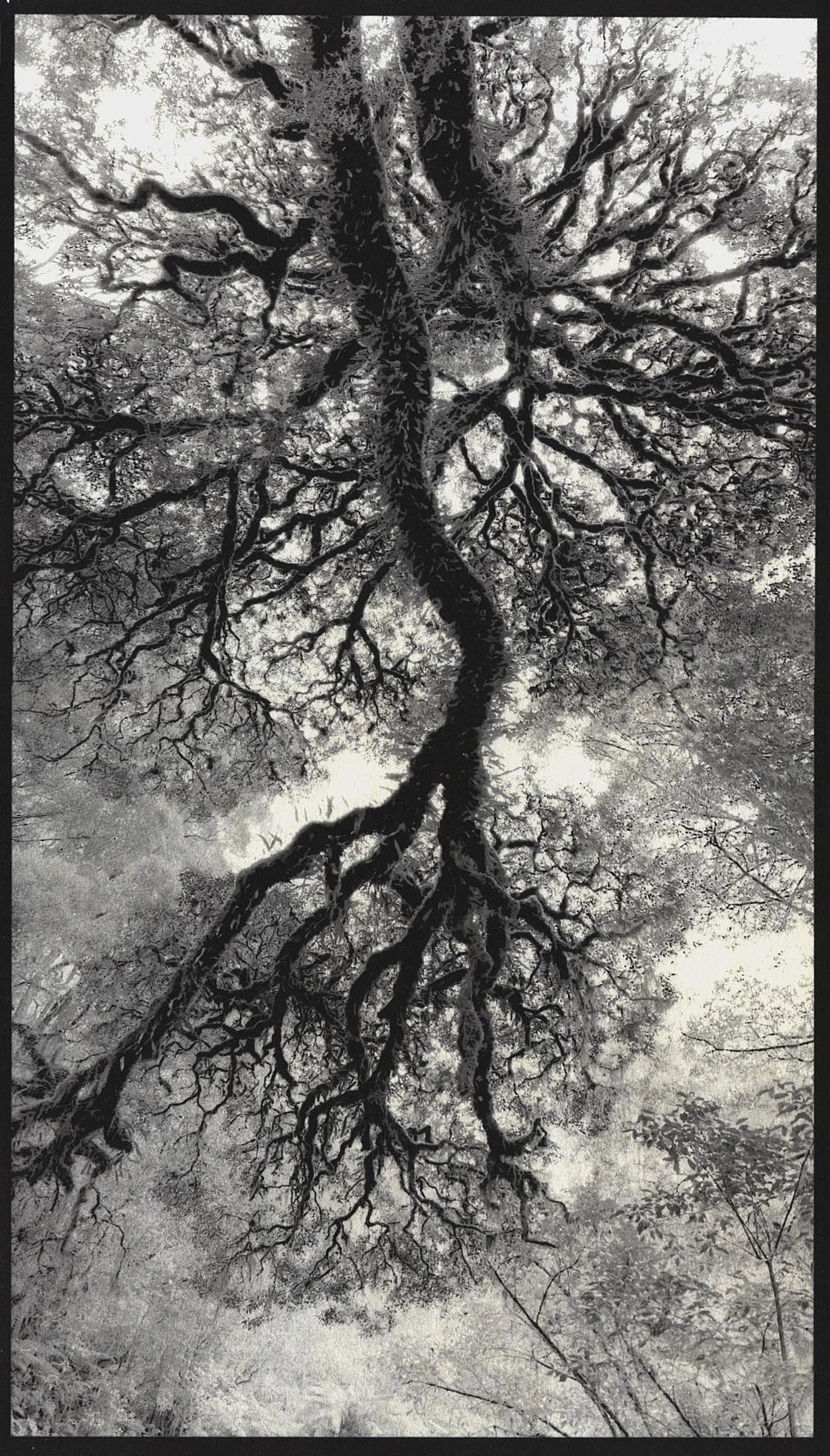
.1×12.5 inch (18×32 cm) Kallitype print made from a profiled negative without further correction. Photograph & print by John Riches