
Option A
Outline
Establish the exposure and negative RGB range for the printer and process.
Enter the two RGB range values into the app and select a Profile.
Prepare a test strip using the TruNeg Test Strip Template
Convert the test strip and do a test print
Assess the test print and adjust the tones using the DLogRGB curve.
Reprint, assess and amend as necessary.
Before commencing, check that the monitor and printer are set up as described on the Settings page.
If you do not know the exposure for a good Dmax and still retain a clean white, download and print the three-up Calibration Stepwedge from the Downloads page. Expose the entire stepwedge for five minutes, then cover one section and give the rest another five minutes. Cover the next section and expose the remaining part for ten more minutes. If everything is too dark or light, adjust the exposure accordingly and repeat.
Aim for a Dmax where, at least, the last two steps cannot be separated from the adjacent film strip. There isn’t one perfect exposure; what matters is a clean paper white and a good maximum density
When the exposure looks right, dry the test strip and take a closer look to find the RGB values for “Just White” and “Just Black.”
“Just White” is usually easy to spot. “Just Black” is a bit trickier. Rather than looking for the very last tone that can be distinguished from the adjacent Dmax strip, run your finger down the Dmax strip and stop where the stepwedge first seems to merge into Dmax.
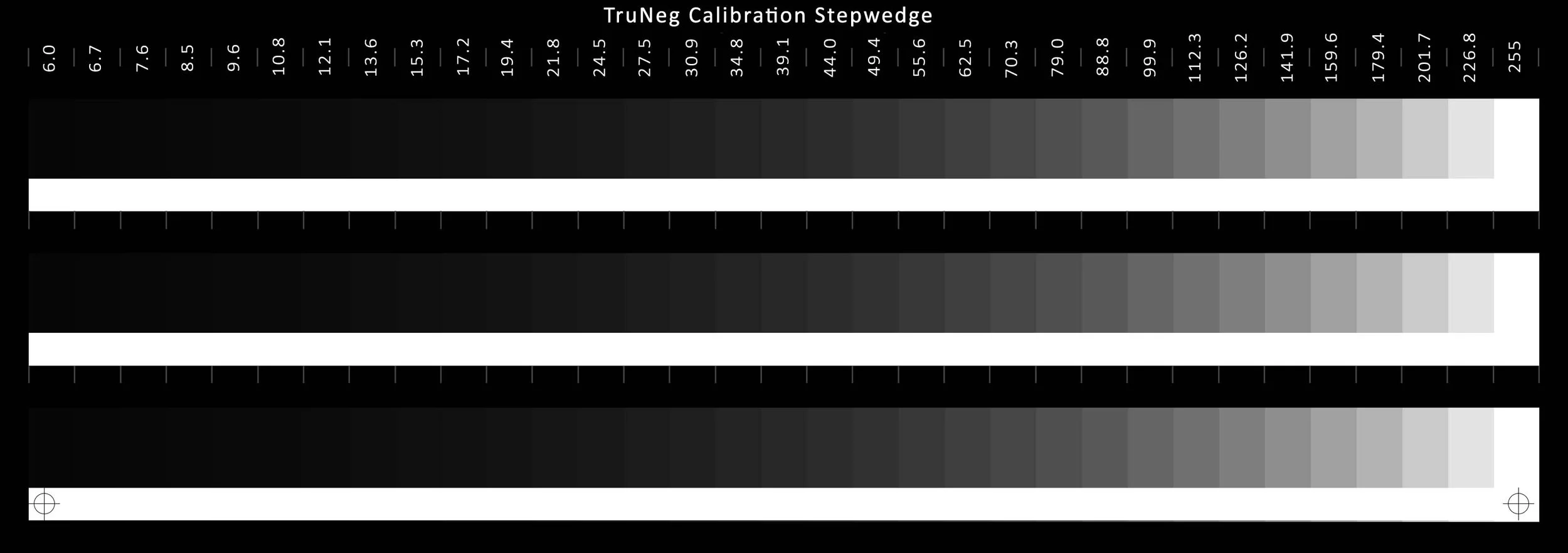
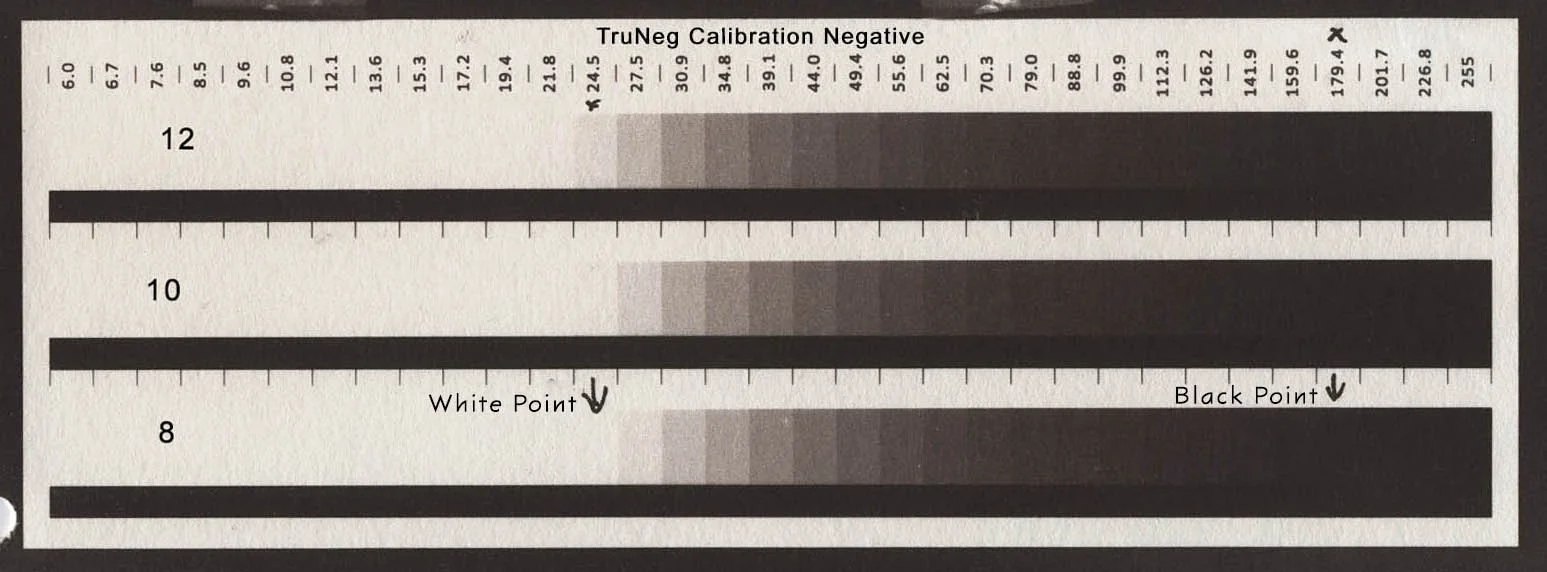
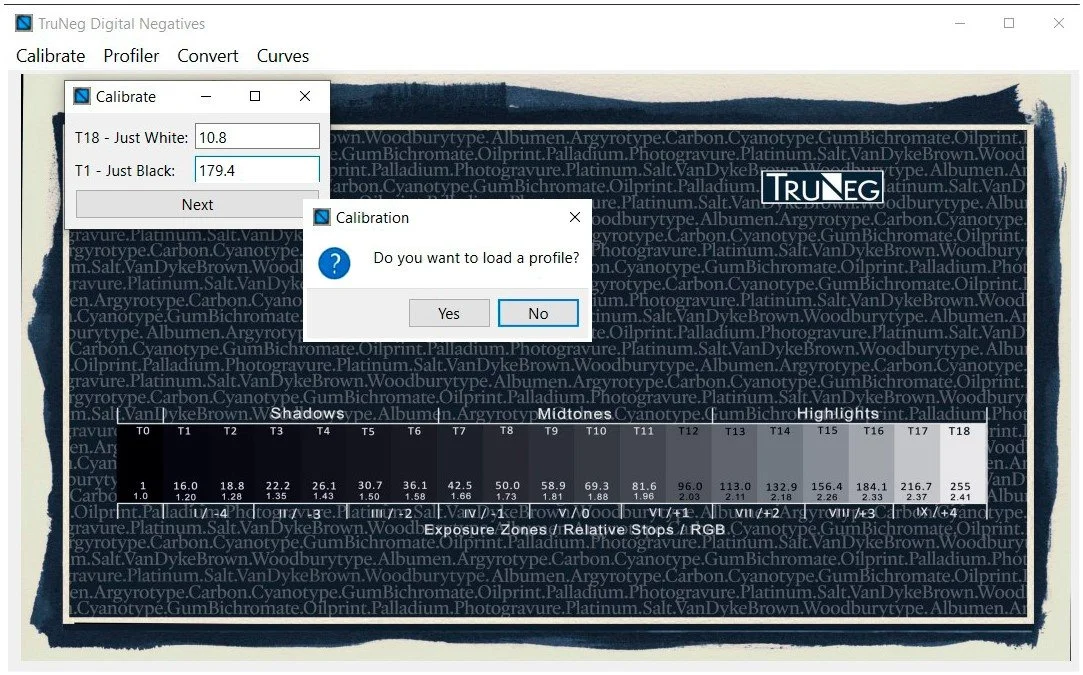
Open the Calibration menu and input the two RGB values that produce ”Just White’ and ”Just Black”. This is the information used to make the negative.
When you press Next, a window opens and prompts you to choose a profile. Select “Yes,” then load the profile from the website for the process you are using and save the preset with a three- or four-letter name that identifies the process, followed by the exposure time in brackets. The program fills in the white and black values, the overall gamma, and a short suffix identifying the profile used.
E.G. Salt(12)(10,8_179,4_1,016)Slt
Although this creates long file names, keeping a clear, accurate record of each negative and print makes life much easier. To view the profile curve, select the preset in the Curves window, see below.
Download and open the Test Strip Template. The Template contains an 18-step 16-bit logarithmic stepwedge. Tones T1 and T18 are the Dmax and white values just found. Copy and paste the template over parts of the image with important highlights and shadows, rotating the image if necessary.
When happy, flatten the file, crop and save the test strip, making sure you do not overwrite the original image
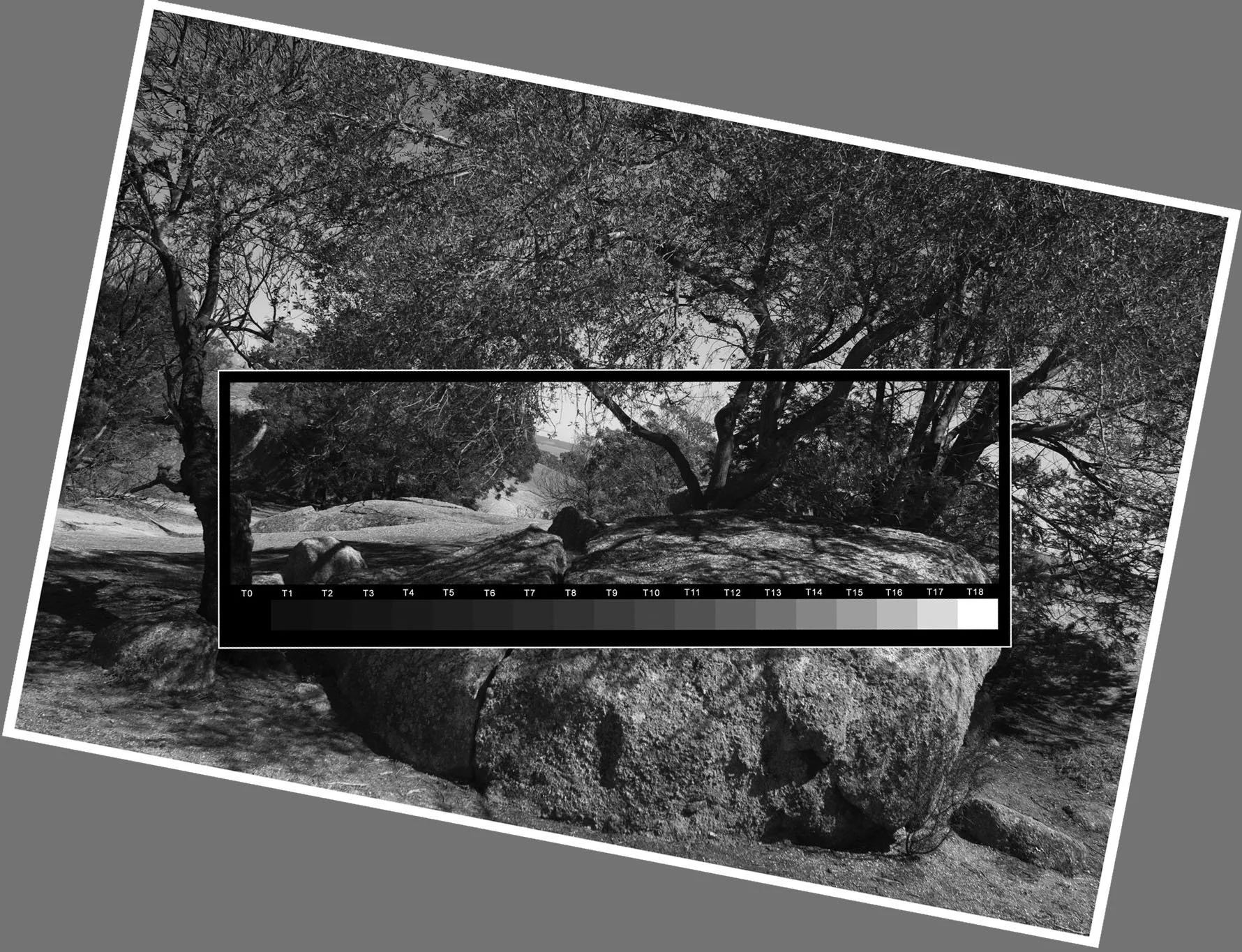
In the Convert Menu, open the Test Strip Template, select the Preset and press OK to convert the test strip into a negative.
When finished, the test strip is automatically exported back to the Preset folder, ready for printing.
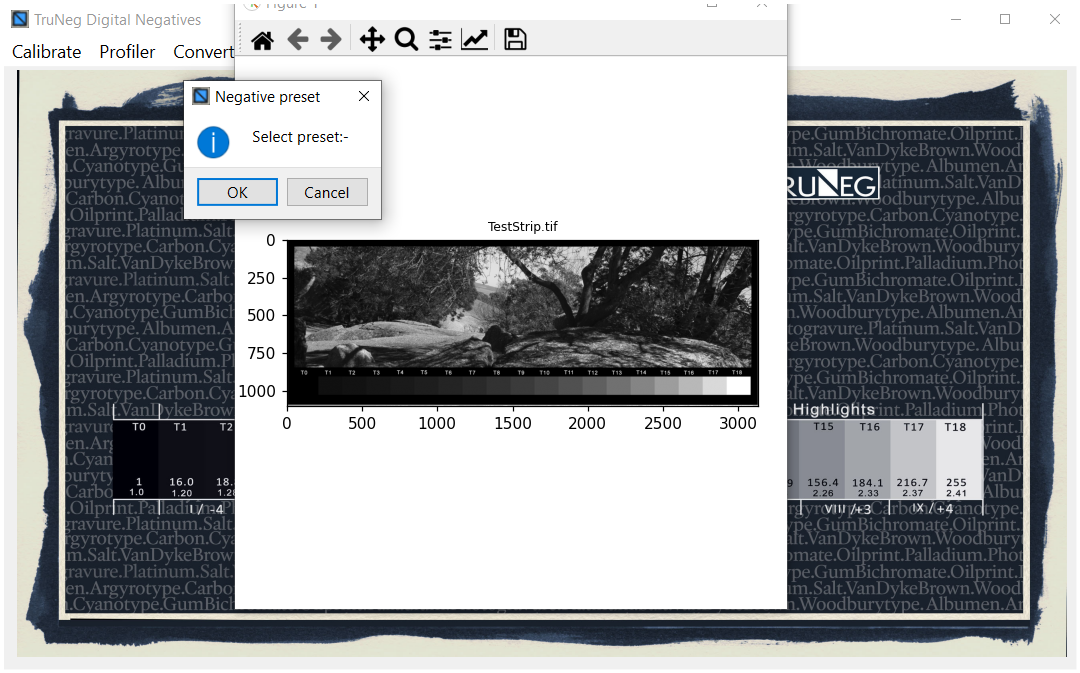
In order to keep accurate records, copy the Preset name and paste it into the negative’s border and print the test strip. Don’t forget to flip the canvas horizontally and to check the printer settings.
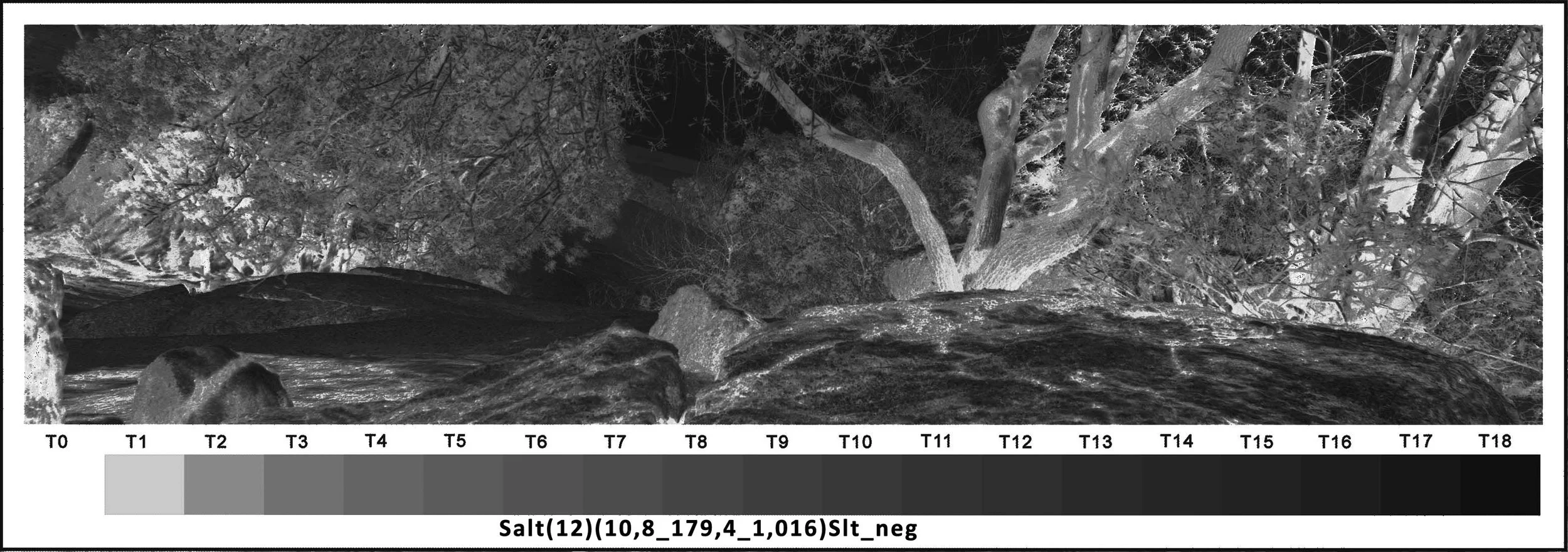
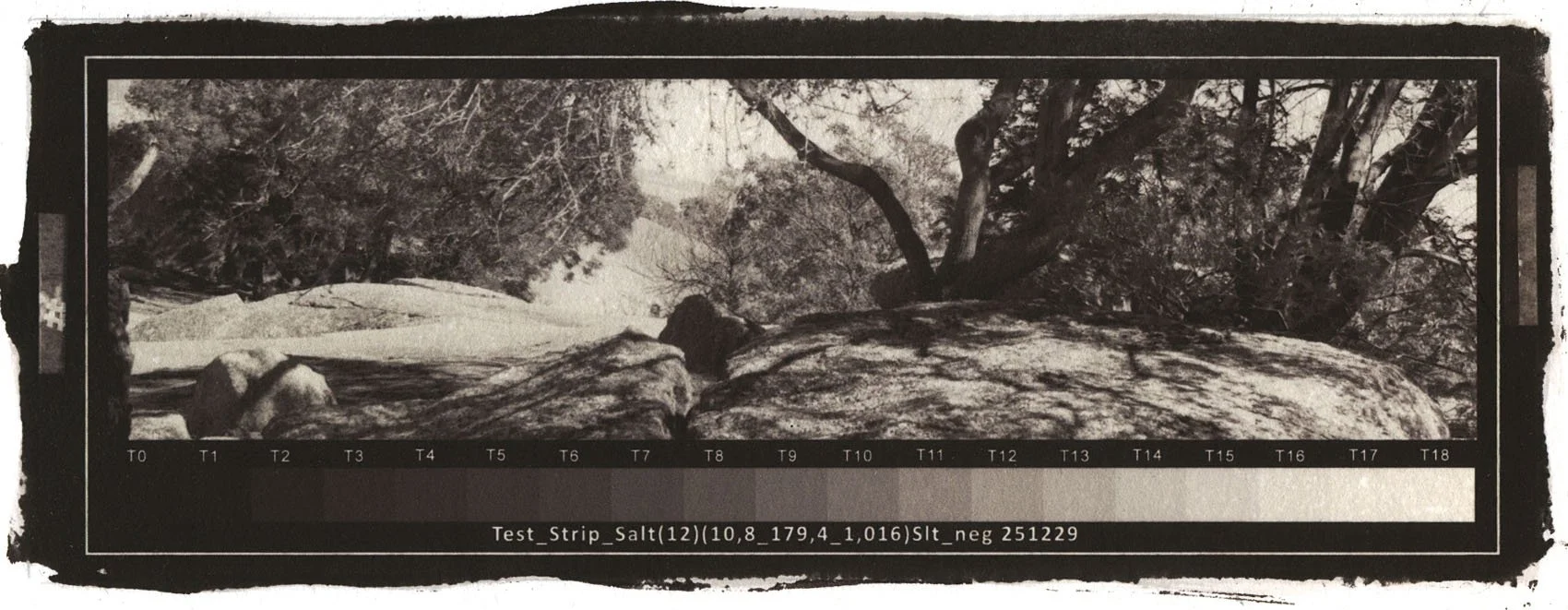
The Curve Window
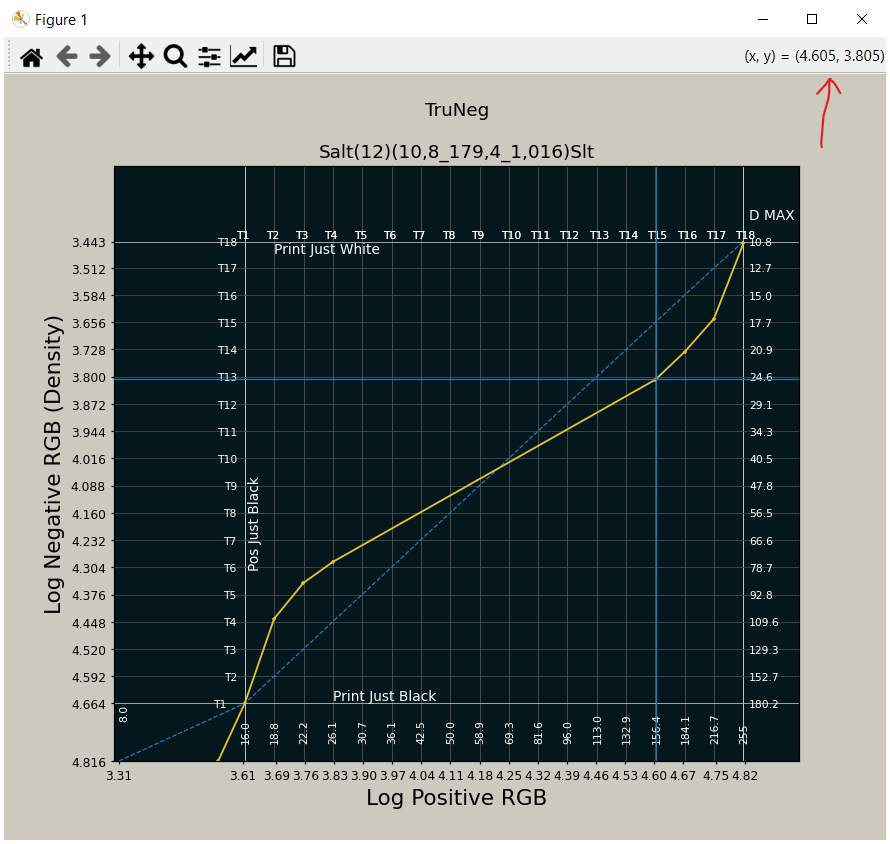
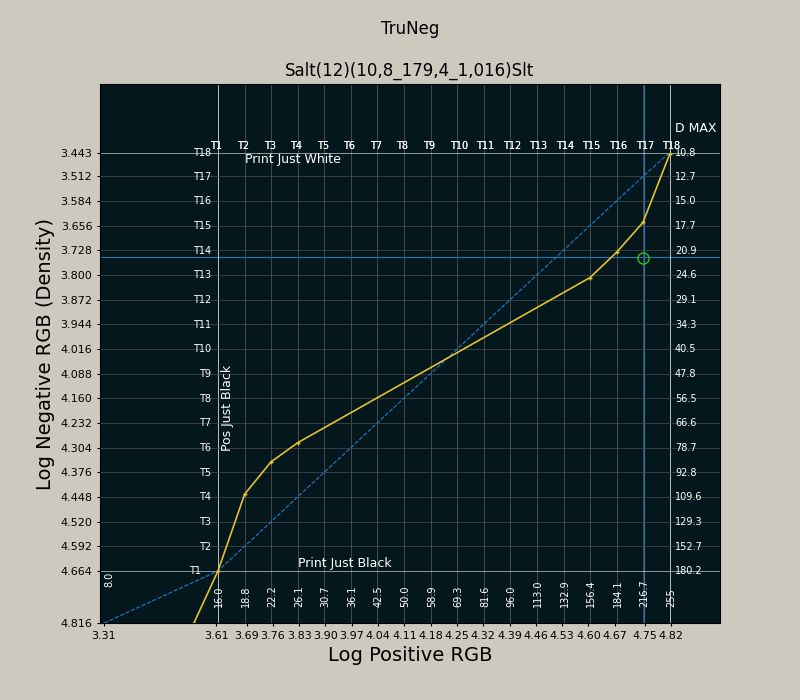
Take some time to familiarise yourself with the Curves window. The dashed blue line is the negative created by the inverse proportion between the negative and positive logarithms. The yellow curve represents the alternative process’s inverse DLogE curve. The window is interactive, and you can adjust the print tones by clicking on the window to draw a new curve over the existing one.
The set of numbers along the bottom axis are the logarithms of the 16-bit positive image. The values just above and inside the plot area are the equivalent 8-bit RGB values displayed on the monitor. Each T number across the top corresponds to a Test Strip stepwedge tone. Similarly, the left Y-axis notations are the logarithm of the 16-bit negative, and the right-hand side shows the equivalent 8-bit RGB values. The Y-axis scales are reversed so that as the positive image gets lighter, the negative gets darker.
The negative’s RGB values that produced the density on each stepwedge tone are where the curve crosses the vertical grid line, creating a direct link between each negative value and the print.
Clicking above the curve lightens the print; clicking below darkens it. There is no limit to the number of points, other than that they cannot be closer than approximately half a grid space. You can add points between existing ones, remove them by right-clicking, move them by left-clicking and dragging, and place them anywhere on or between lines.
The exact value of any x,y coordinate is shown at the chart’s top right-hand corner. The values are in sixteen-bit RGB logarithms. To convert to the familiar 8-bit value, use a calculator to find the number’s anti-log and divide by 257.
Editing the Print
In the Salt test strip above, the print highlights are too light and burnt out, and the T17 step, the last step before the white step, is barely visible, and it looks like we need to darken T17 to be darker than the T16 step.
The plot shows that the negative value that produced T16 is about 21, so we need to set T17 a little bit darker to about RGB 22. To do this, keeping the vertical crosshair on the T17 line, align the horizontal cursor crosshair with the yellow curve just below where it crosses the T16 vertical grid line, and left-click to recalibrate the first highlight tone.
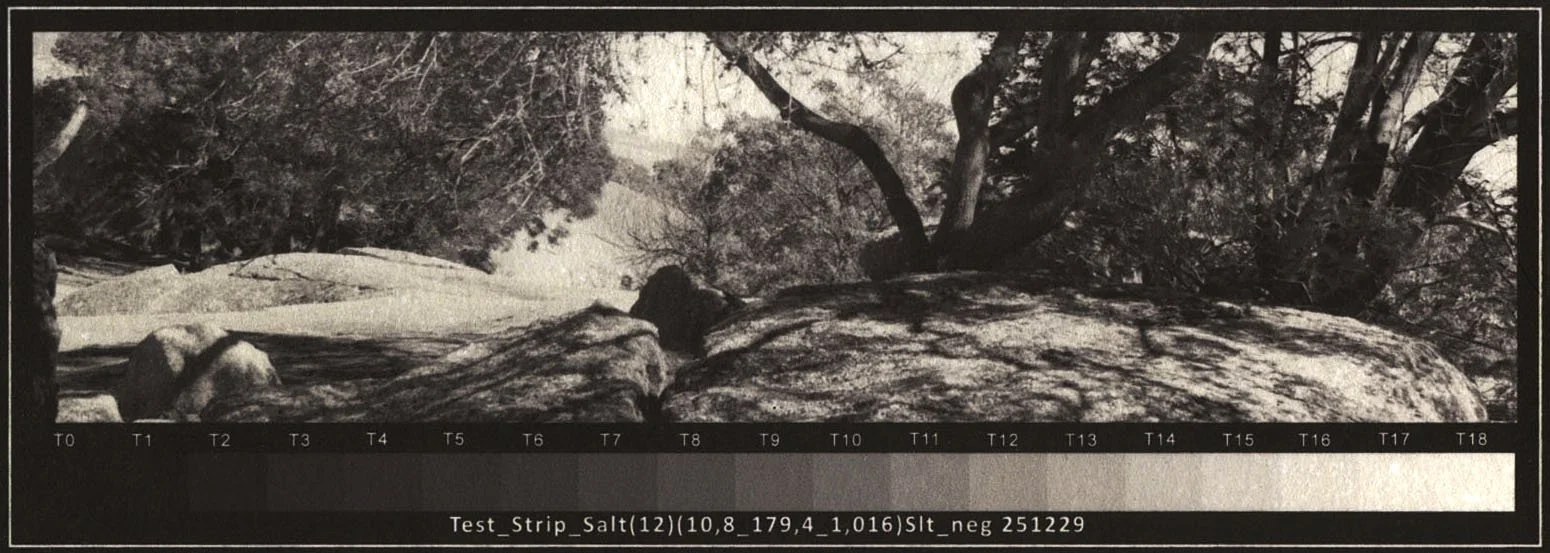
The shadows up to T4 an5 T5 look good and do not need adjusting, so we know that the new curve is going to go through that point. Inputting the new point at T4 generates a green line between the two control points.
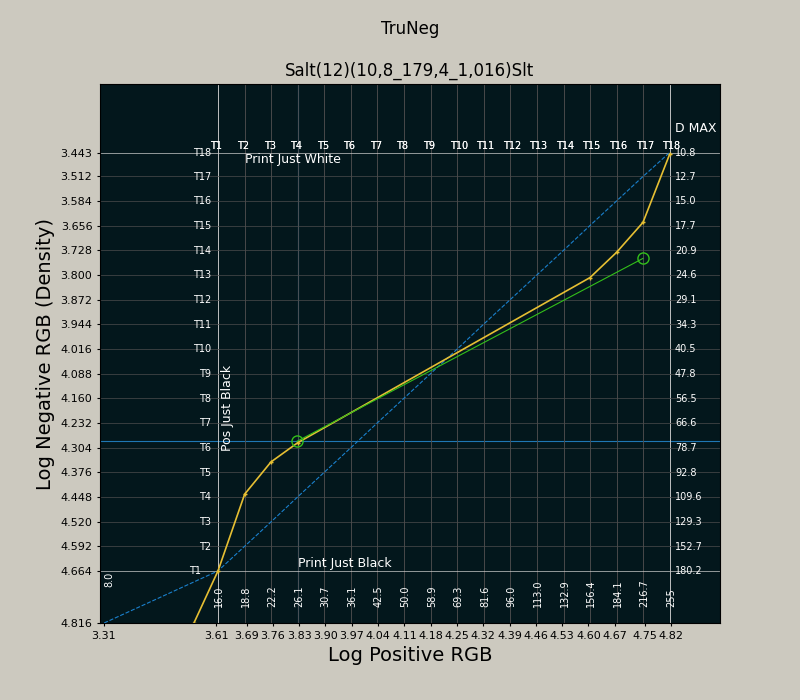
Left click and hold to enlarge.
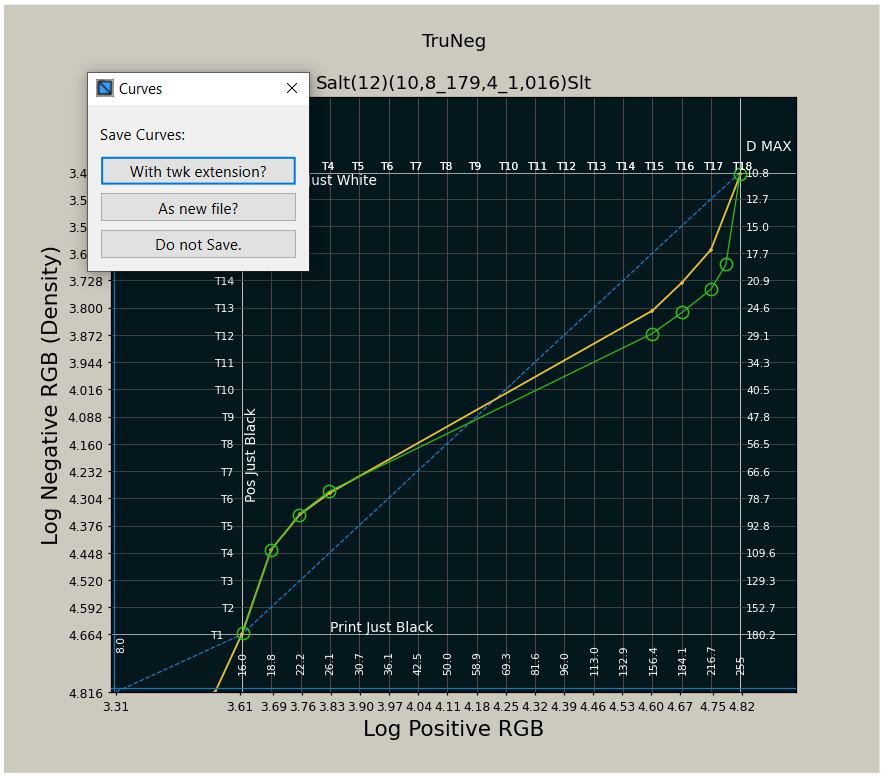
Smooth out the curve to darken the highlights, merging the new curve into the old while preserving its overall form.
When finished, left-click on the bottom-left corner of the dark plot area to bring up a Save dialogue. Choose the preferred option and save the new curve. Saving with the Tweak option adds _twk to the file name each time you save. This allows you to see the changes made to the print as it was developed. You can display up to three different curves in the same window.
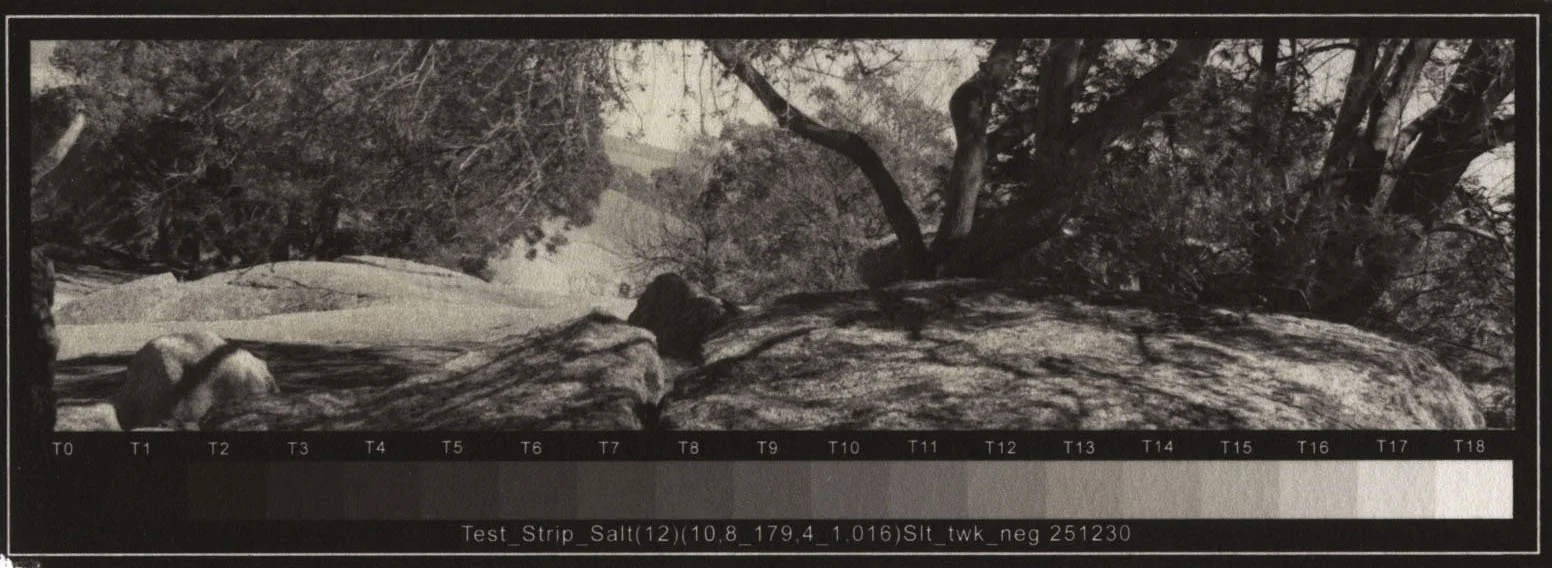
Convert and print the new test strip with the tweaked Preset.
As can be seen from the small changes in the RGB values in the curve’s highlights, these tones are the most demanding for the printer, and most problems are likely to occur here.
If the highlights and dark shadows look OK but the print and stepwedge appear too light, darken the midtones, again keeping the overall shape of the curve. Conversely, if the test strip appears too dark, lighten the midtones.
While this requires some experience and expertise, you can craft the print to your own ideas.